Jira Integrations
The Jira Integration allows your organization to connect Jira with Onion to enable seamless issue tracking and test management.
Once integrated, users can:
- Link test cases with Jira issues
- Automatically create or update Jira tickets
- Track test execution results directly in Jira
This guide explains how to configure and use Jira integration at both the organization and project levels.
Accessing Jira Integration
To start using Jira integration:
- Ensure that a Project is selected.
- Navigate to the Test Cases module.
- Click either Add Test Case or OnionAI TestGen.

Integrating with Jira
To connect a Jira issue:
- In the test case creation screen, paste the Jira issue URL into the corresponding field.
- Click Add Jira Issue.
- When the authorization prompt appears, click Authorize Jira.
- You will be redirected to Jira to grant permission.
Click Accept to allow access. - After successful authorization, a confirmation message is displayed.
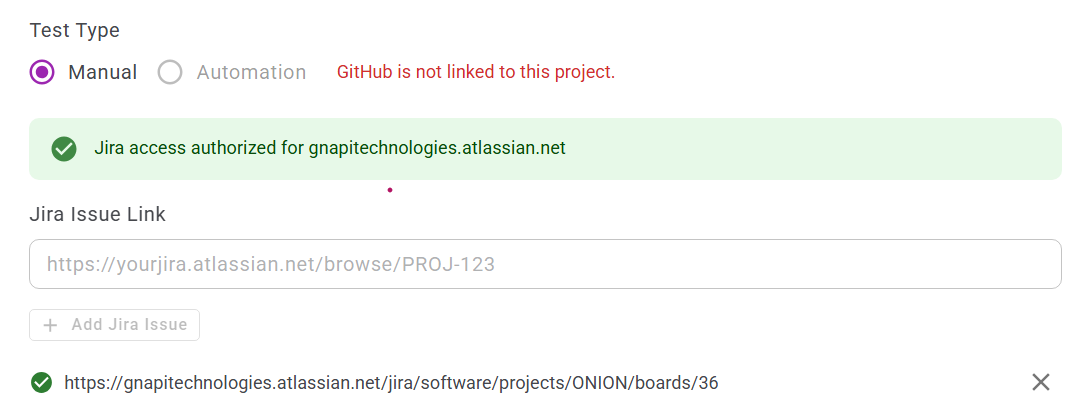
After Integration
Once Jira is connected:
- Test cases can be linked to Jira issues.
- Jira tickets can be created or updated directly from Onion.
- Execution results can be synchronized with Jira.