Github Integrations
The GitHub Integration allows your organization to connect GitHub repositories with Katalyst.
Once connected, users can select repositories, branches, and workflows, and configure CI/CD execution seamlessly.
This document explains:
- How to connect a GitHub organization
- How to configure GitHub settings at the project level
- How to use CI/CD workflow templates
Accessing GitHub Integration
To access GitHub integration:
- From the left sidebar, click Integrations.
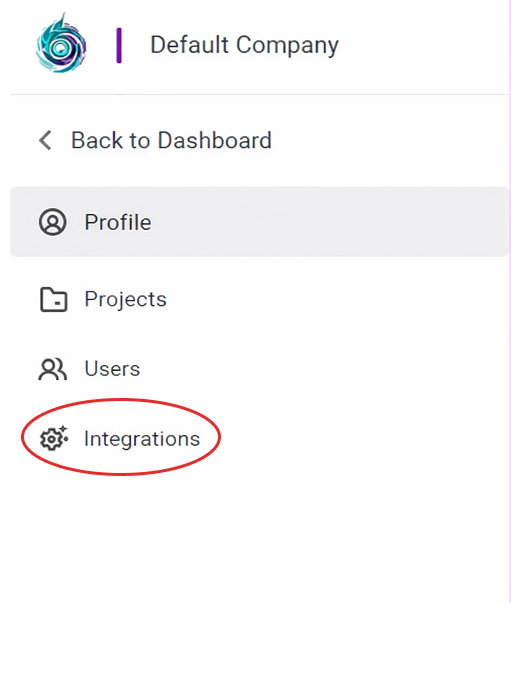
1. Organization-Level GitHub Integration
To connect a GitHub organization:
In the GitHub Integration section, click Connect to GitHub Organization under GitHub Organization.
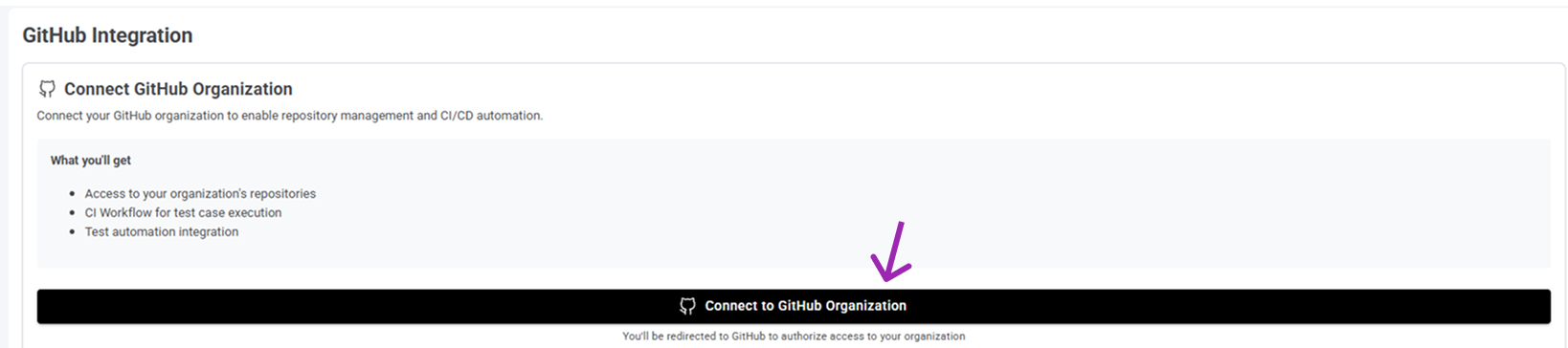
Log in to your GitHub account.
Grant repository access by selecting either:
- All repositories, or
- Selected repositories
Click Save to confirm.
After successful connection, the GitHub integration interface is displayed with the message
“GitHub integration is active.”

2. Project-Level GitHub Integration
After completing organization-level GitHub integration:
- Select a Project.
- Navigate to Project Settings → GitHub.
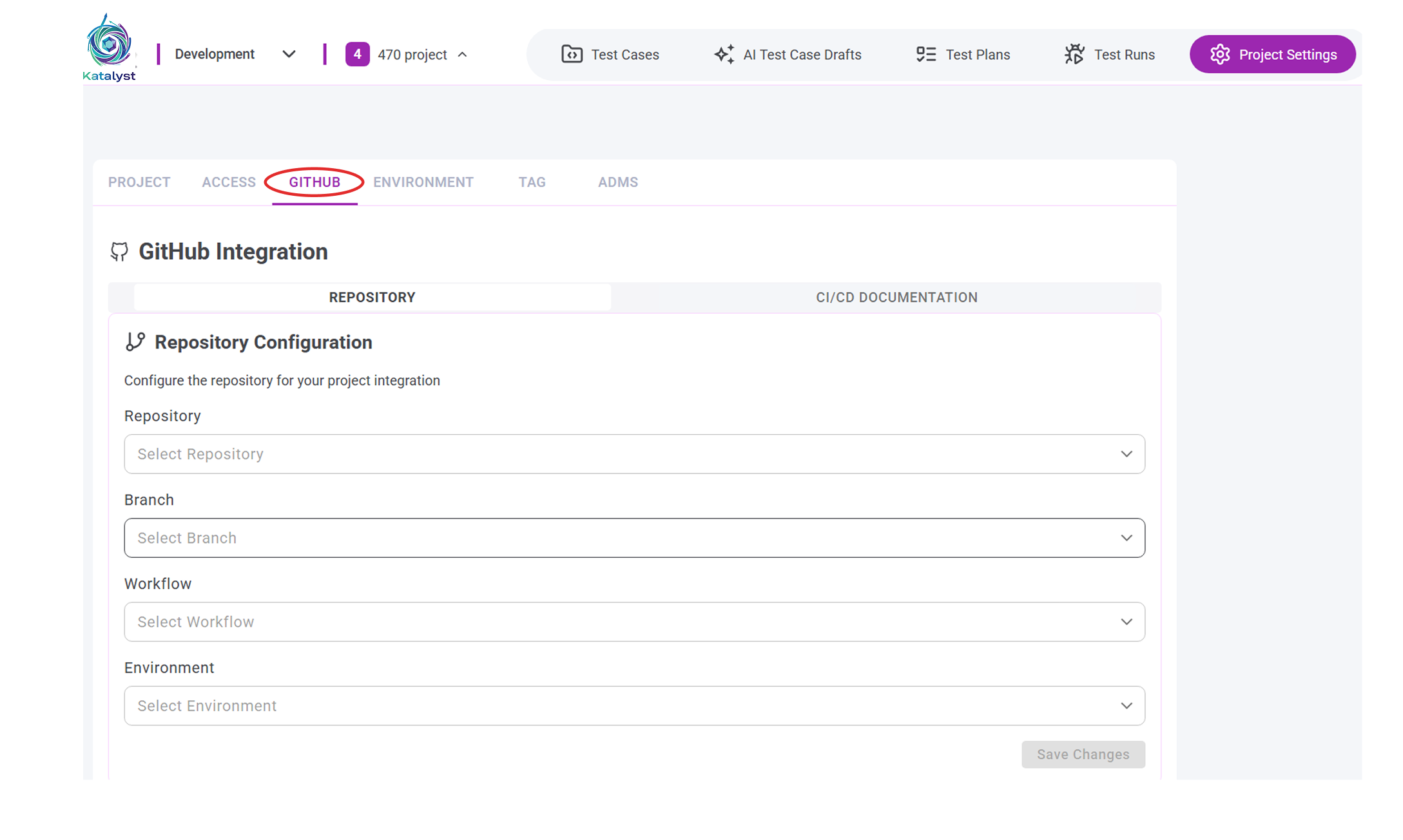
2.1 Choosing the Integration Type
At the project level, you can choose how GitHub is integrated.
Available options:
- Repository-Based Integration
- CI/CD Documentation-Based Integration
Select the option based on your project requirements.
2.2 Repository-Based Integration
If Repository-Based Integration is selected:
Configuration Steps
- Select a Repository from the connected GitHub organization.
- Select the Branch.
- Select the Workflow.
- Select the Environment.
- Click Save.
Result
- The selected repository, branch, workflow, and environment are linked to the project.
- GitHub integration settings are saved successfully.
2.3 CI/CD Documentation-Based Integration
If CI/CD Documentation-Based Integration is selected:
2.3.1 Select Testing Framework
Choose one of the supported frameworks:
- Playwright
- Selenium
2.3.2 Choose Workflow Option
Select one of the following:
- Copy Workflow
- Download YAML File
What Happens Next
- If Copy Workflow is selected, the workflow content is copied to the clipboard.
- If Download YAML File is selected, the workflow YAML file is downloaded.
You can then add the workflow file to your GitHub repository to enable CI/CD execution.
3. Common Use Cases
- Connect a GitHub organization once and reuse it across multiple projects.
- Configure different repositories and workflows for different projects.
- Quickly onboard projects using predefined CI/CD workflow templates.